
Identifying Objects with Visual Look Up on iPhone: A Series (Dispatch No. 1, Plants)
The Magic of Apple's Object Detection for Images
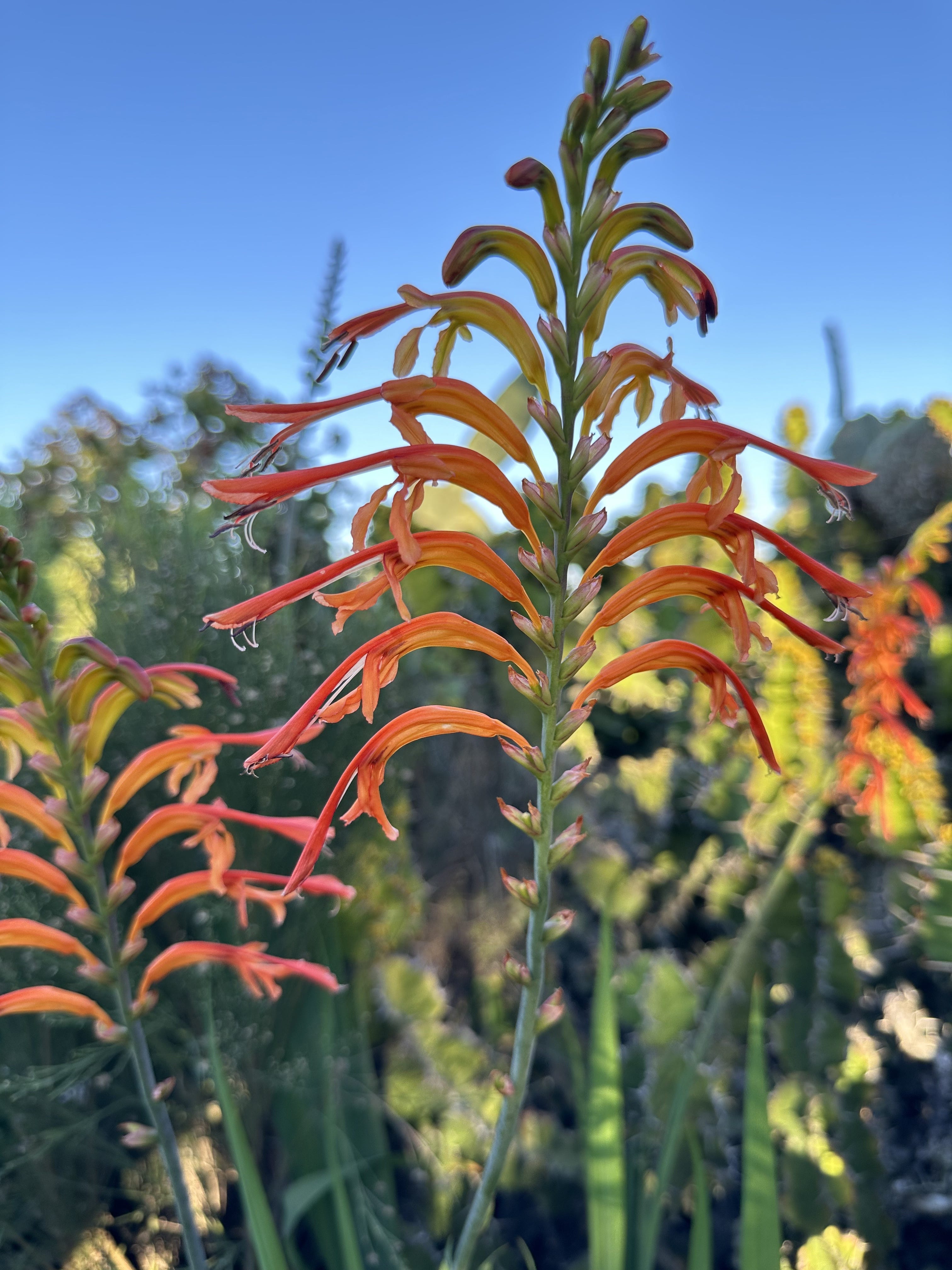
When you capture a photograph with a newer iPhone, it uses on-device machine learning to scan the image for elements that it can identify, which can include varieties of plants, animals, famous art, books, food dishes, landmarks and more.
Exploring Your Surroundings
We’ve all walked by an interesting tree or flower and wondered what the common name or even Latin classification of the particular plant happened to be. Wouldn’t it be nice if there was a way to quickly identify the beautiful vegetation before us with a tool we already likely have in our pocket? Well, luckily for all of us living in this modern world of amazing technology, there is. It’s called the iPhone and you may have heard of it. Even though this incredibly useful feature has been available to iPhone users since iOS 15 (We’re currently on iOS 17), many users are simply unaware of its existence. Luckily for you, dear reader, you are no longer one of the unaware masses.
Astounding Technology
When you capture a photograph with a newer iPhone, it uses on-device machine learning to scan the image for elements that it can identify, which can include varieties of plants, animals, famous art, books, food dishes, landmarks and more. This is all enabled through sophisticated on-board hardware and software that is then integrated with rich data sources such as Wikipedia to pull in even more detailed information about a given object in your image. Let’s lean how to use the wonderful Visual Look Up feature below.
Using Visual Look Up
• 1. Open Your Camera App and Select Photo
• 2. Emphasize Your Desired Object in the Frame
• 3. Press the Shutter Button to Capture Your Subject
• 4. Tap the Image Preview to the Lower Left
• 5. Press the Image and Gently Swipe Up to Reveal Info Pane:
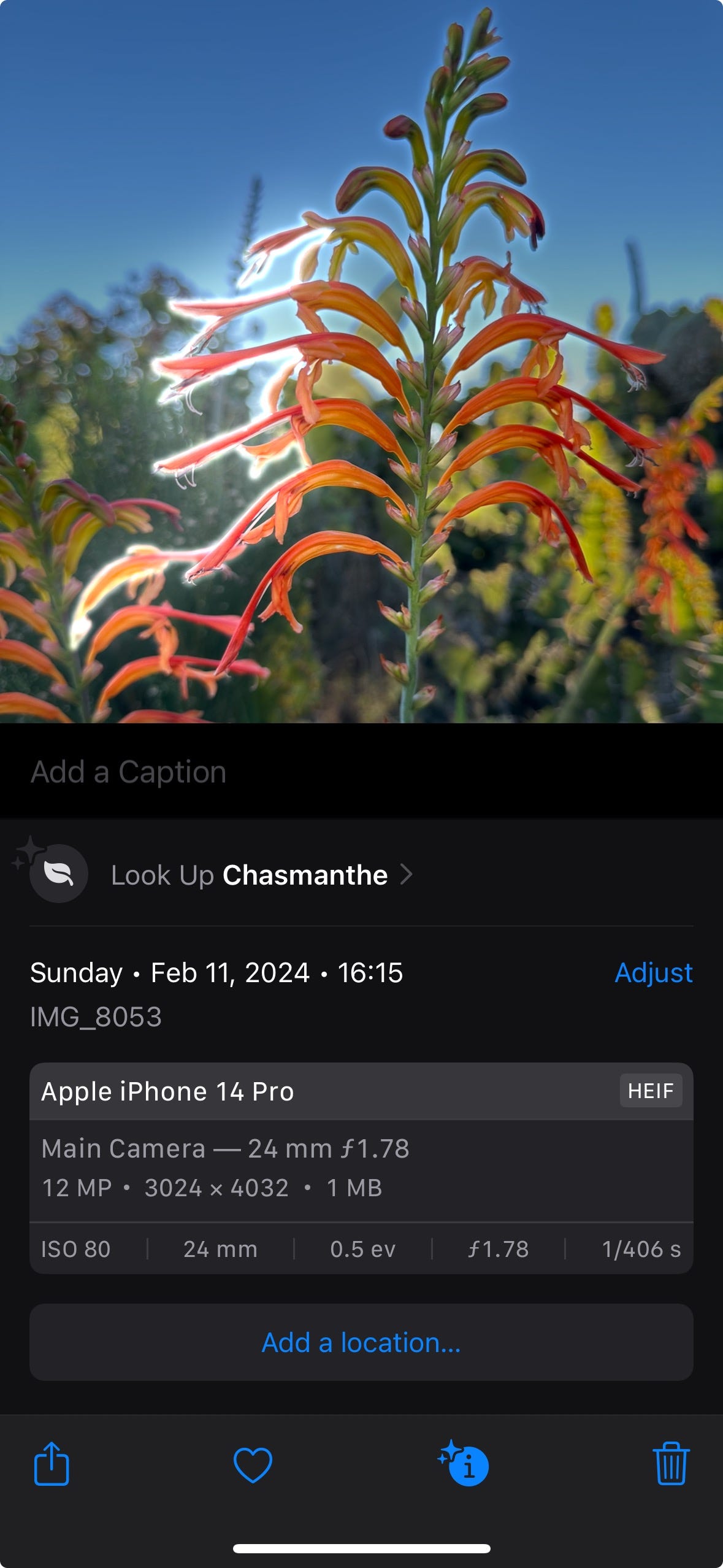
• 6. Tap Look Up “Object” for Web Images and More Details:
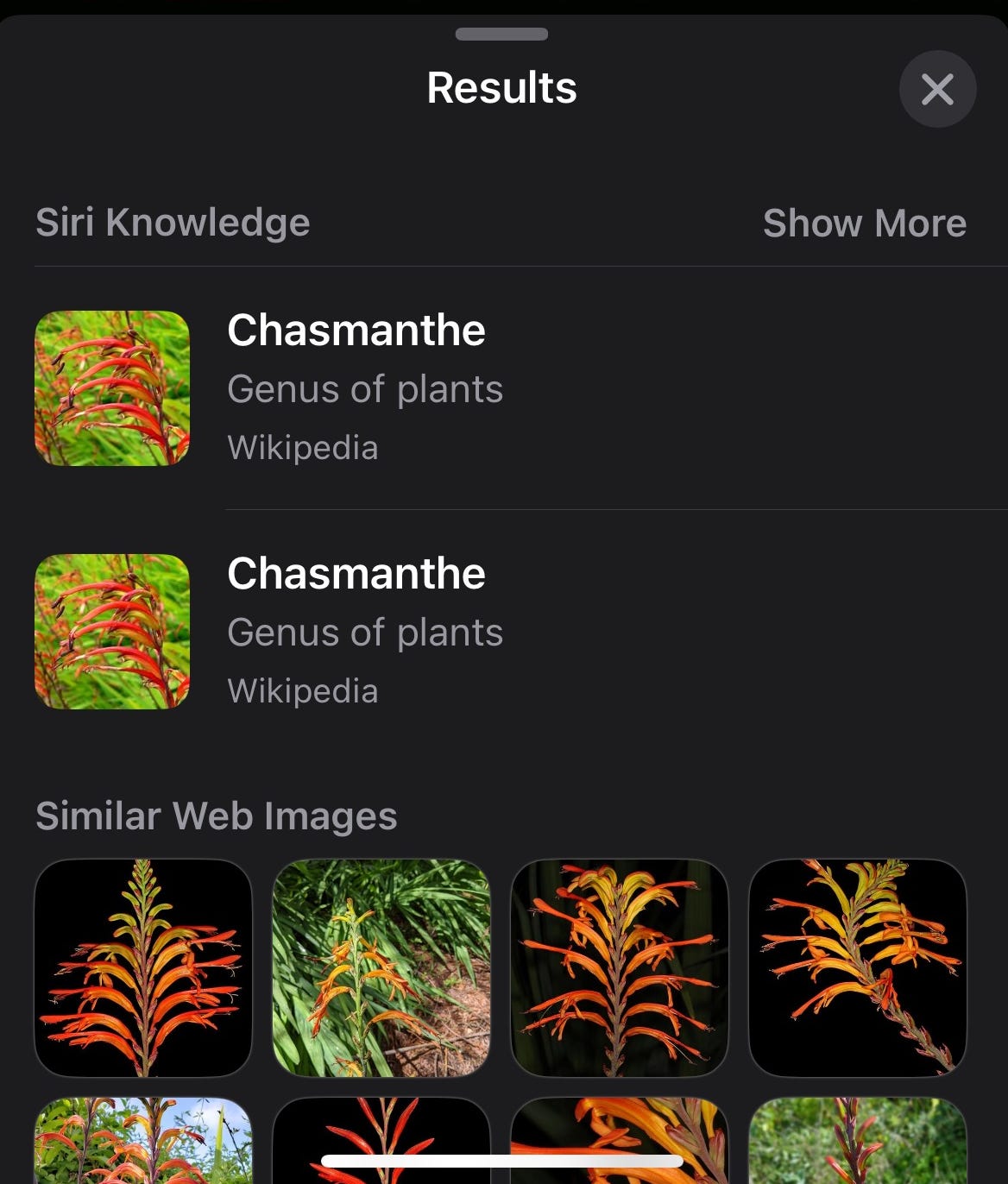
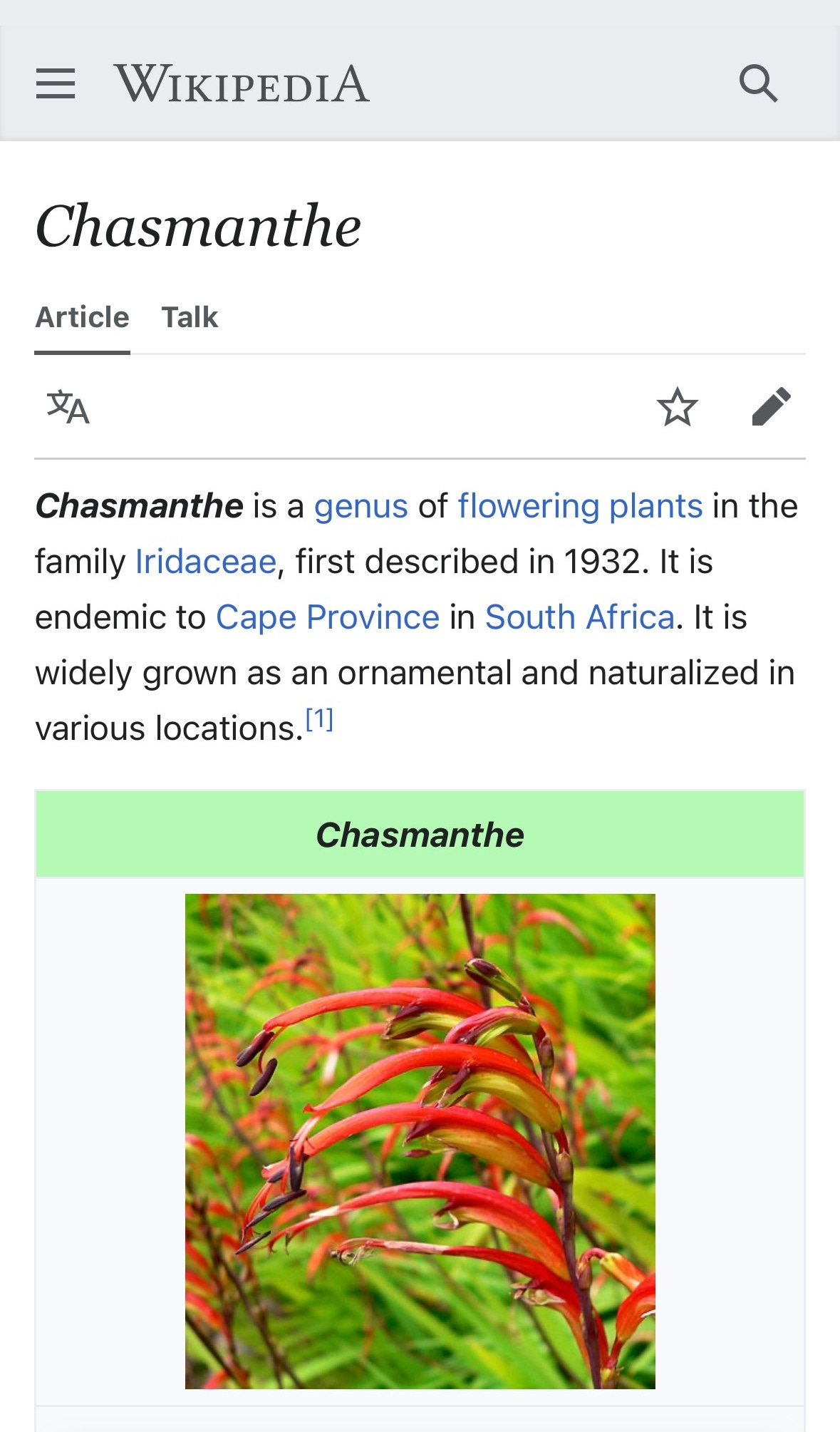
• 7. Tap Plant Variety Name for Wikipedia Summary:
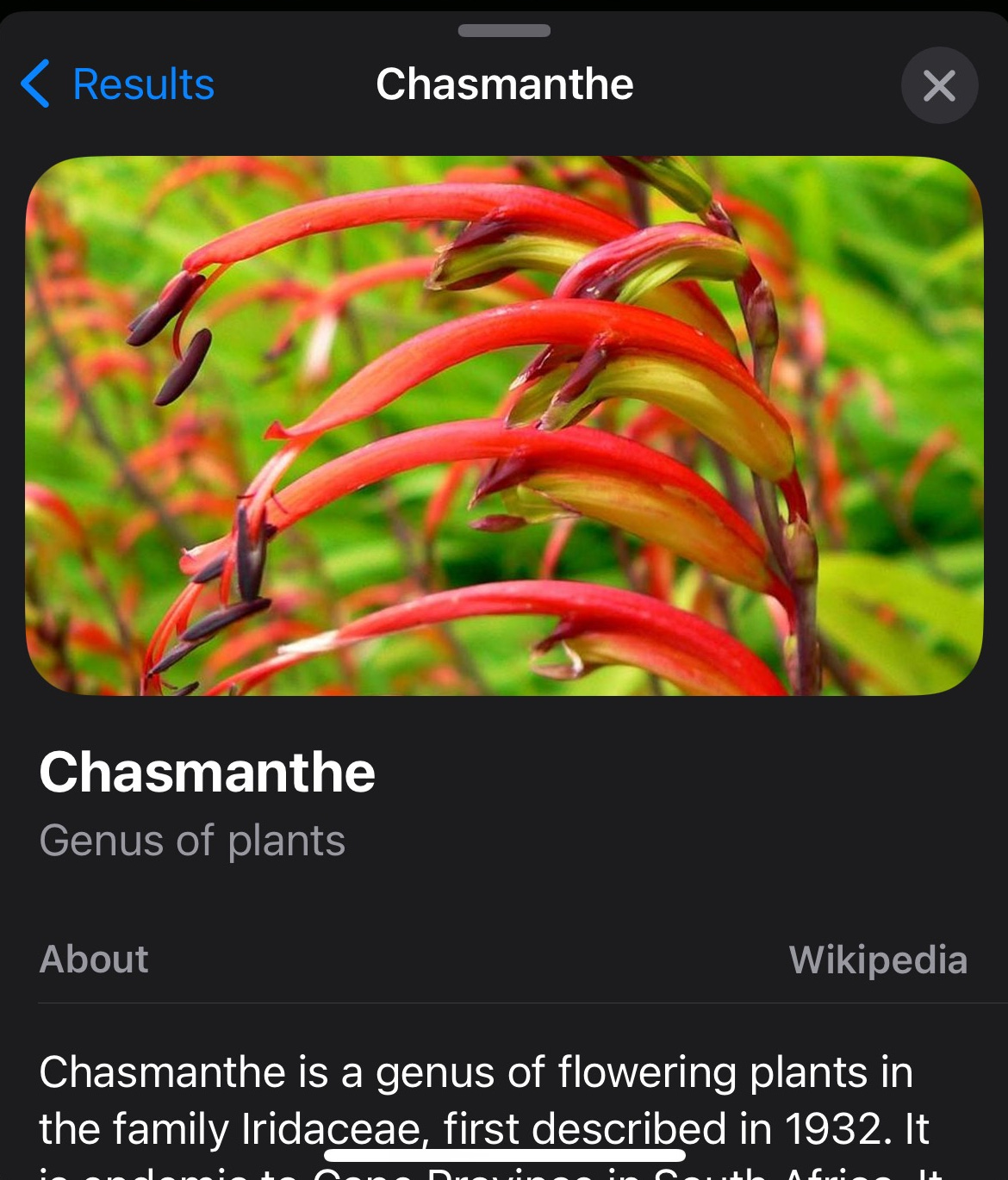
• 8. Tap Web Image or Wikipedia for Full Entry in Safari:
Closing Ideas
It is a good idea to keep in mind that it can take a little time for your iPhone to process the image data after taking the photo. The Info Pane also doesn’t automatically list the species name of the specific plant every time, so just be prepared to tap the Look Up option to display the name and discover more images and details about the variety you are looking up. Tapping through each screen reveals successively more details about the given object without even launching Safari. However, if you need the full Wikipedia entry, you are only a few taps away.
More dispatches will be coming in this series with other interesting and clever ways to use Visual Look Up to discover rich information about the world around us.
Helpful References:
Use Visual Look Up to identify objects in your photos and videos on iPhone
https://support.apple.com/guide/iphone/visual-identify-objects-photos-videos-iph21c29a1cf/ios
Use Visual Look Up on your iPhone or iPad - Apple Support
https://support.apple.com/en-us/104962
Models that support Live Text, Visual Look Up, and lifting a subject from the background
https://support.apple.com/guide/iphone/aside/iph691752bc0/17.0/ios/17.0
Chasmanthe floribunda
https://en.wikipedia.org/wiki/Chasmanthe_floribunda